




MaxelTracker Logo
Clickup integration banner
Task icon

ClickUp Time Tracking Integration

Connect MaxelTracker with ClickUp to import your projects & tasks and track time directly in MaxelTracker. Your team runs a timer in front of a task, moves a task through its stages as work progresses, and captures all tracked activity data for each hour in MaxelTracker.

No Credit Card Required

Track Time On ClickUp Tasks From Inside MaxelTracker

Connect MaxelTracker with ClickUp to track time against real tasks. Import ClickUp projects, run a timer per task, and update task status with two-way sync.

  • Connect ClickUp with MaxelTracker: Once connected, your ClickUp projects and tasks import into MaxelTracker.
  • Employees open View Projects in the desktop app: Find the work grouped by source with the task count on every project. Each task carries its own timer. Start it when work begins and pause it when it stops. The accumulated time stays with that task rather than landing in a general daily total.
  • Two-way sync:Task management works from either side. Create a task in an imported project, assign it to a team member, or move it from To Do to In Progress to Completed, and the change syncs to ClickUp. Edits and new tasks made in ClickUp flow back the other way, so neither tool holds a stale copy, and nobody records the same progress twice.
  • The time and activity layer:The time and activity layer is where MaxelTracker adds what ClickUp does not have. Time spent per task and per project, task and closure counts, and the apps and websites each hour were actually spent in all sit together in one dashboard.
Automatic time tracking

How To Connect MaxelTracker With ClickUp

Setup runs through a guided three-step wizard. You will create a small app inside ClickUp, so the two systems can authenticate with each other.

1

Open Settings > Integrations in MaxelTracker.

Click Configure Integration on the ClickUp card.

2

Create an app in ClickUp:

Go to app.clickup.com and log in using ClickUp credentials. Click your profile in the top right, choose Settings, then ClickUp API. Open ClickUp API Settings and click Create an App using the + button.

3

Set up the app:

Give the app a name. "MaxelTracker". Enter the redirect URL shown in the MaxelTracker wizard: https://api.maxeltracker.com/clickup/callback. Use the copy button rather than paste it in ClickUp setup.

4

Add your credentials:

ClickUp generates a Client ID and a Client Secret. Paste both into the final step of MaxelTracker’s wizard and click Submit.

5

Choose the ClickUp Workspace:

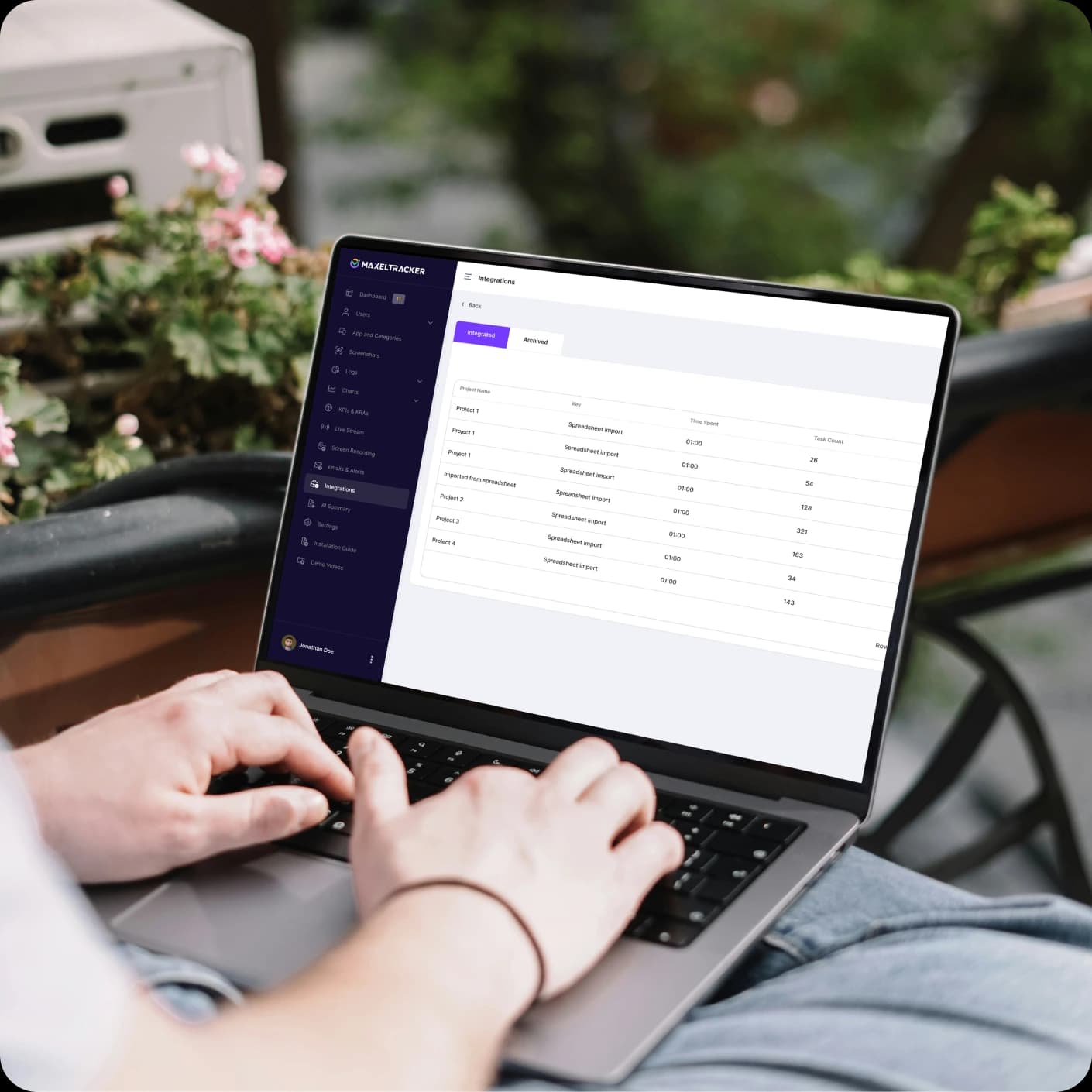
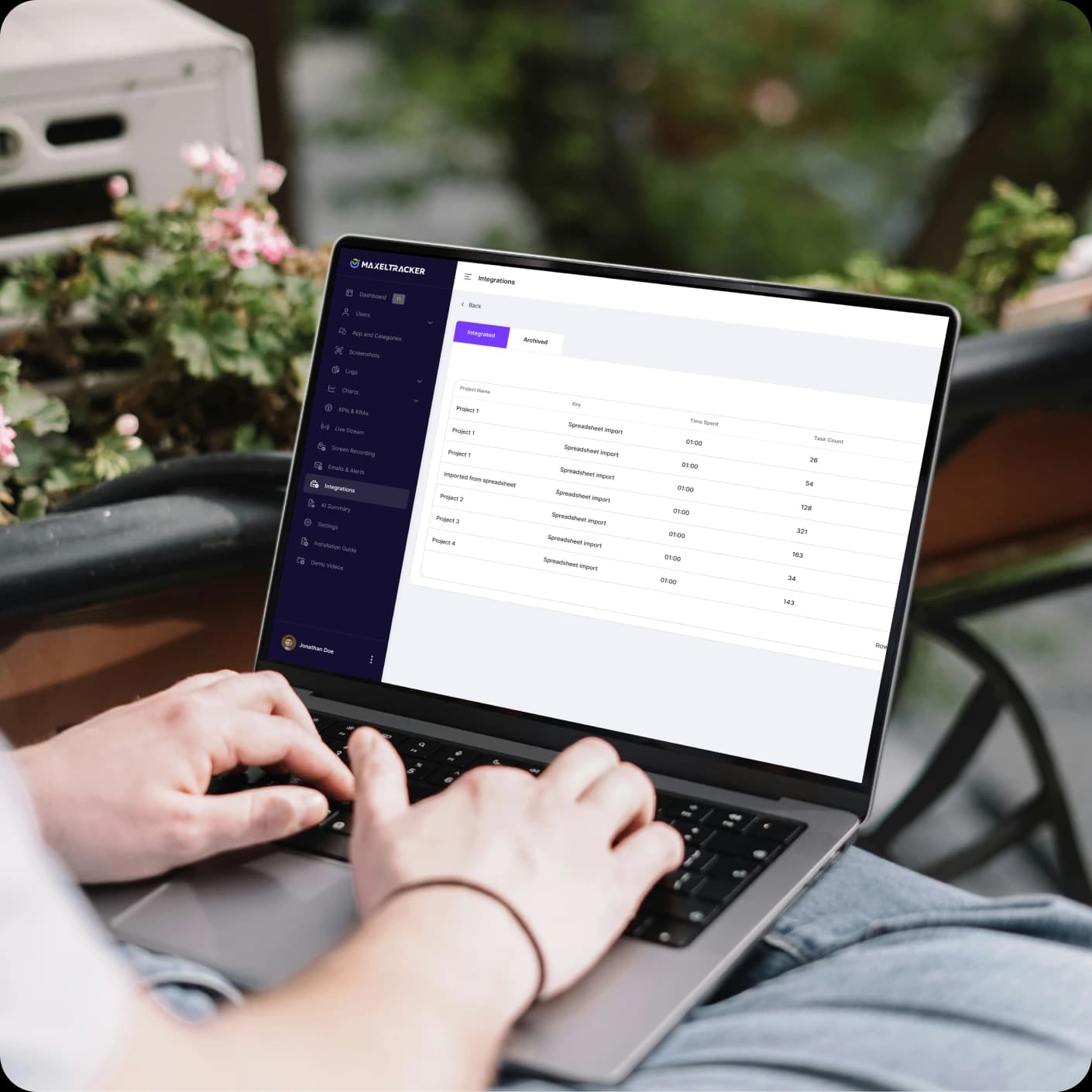
Click on the projects you want to import. Check your imported projects: Open Projects > Integrated. Your ClickUp projects are listed with task counts, time spent, and assignees.

Note: ClickUp applies rate limits to its API, as set out in their developer documentation. MaxelTracker works within those limits, though very large workspaces may import more gradually.

Work Smarter with a Powerful Integration

Two way sync

Two-Way Task Sync

Create a task, assign an owner, or change a status in MaxelTracker and it updates in ClickUp. Make the change in ClickUp and it lands in MaxelTracker. Your team works in whichever tool suits the moment, and neither one falls behind.

Hour Attached

Every Hour Attached To A Real Task

Project time totals, per-task time spent, and closed task counts all read from the same tracked data. When a client or a stakeholder asks where the hours went, the answer is a task name rather than an estimate.

 Activity Behind Each Hour

The Activity Behind Each Hour

This is what a project tool cannot tell you. Time tracked against ClickUp tasks flows into MaxelTracker's productivity insights, so you see not only how long a task took but which apps and websites the work happened in, and how much of it was productive. That is the difference between a number and a decision.

Frequently Asked Questions

Integrate MaxelTracker Into Your ClickUp Workflow Today

Give every tracked hour a task to belong to. Free for 10 days, up to 10 users, and no credit card required.